
The Rescue Console for your VPS is found on your server's Overview page. It is a NoVNC WebSocket stream of your server's console output, primarily used as a recovery method if you cannot access your server over SSH or Remote Desktop.
To get to your server's Rescue Console:
- Log into your BinaryLane account: https://home.binarylane.com.au/login
- Select the server you want to access the Rescue Console on from your list of services
- You will be redirected to your server's 'Overview' page, which displays the Rescue Console next to your server's details:
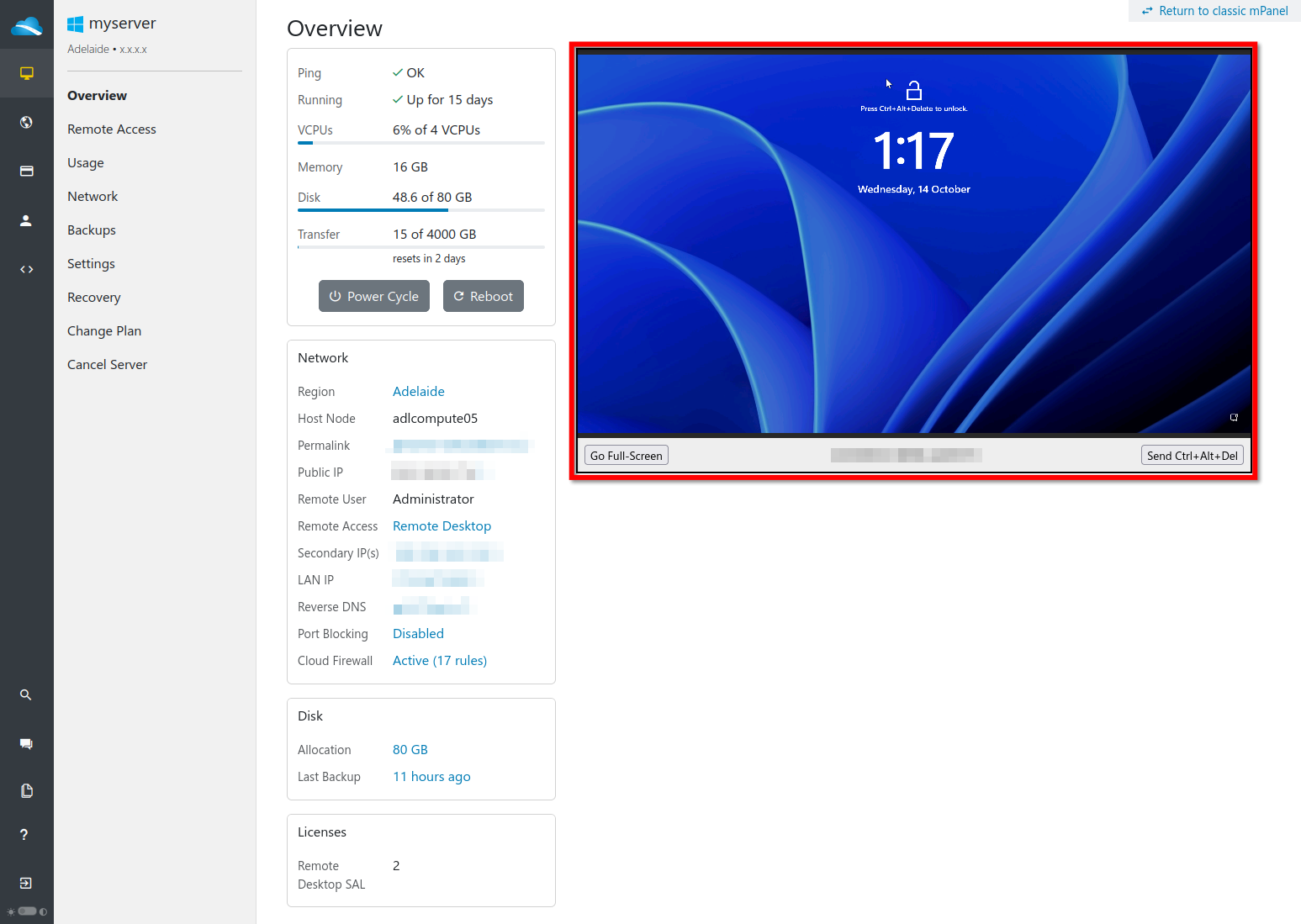
You can click the 'Go Full-Screen' button to be taken directly to the NoVNC websocket session console: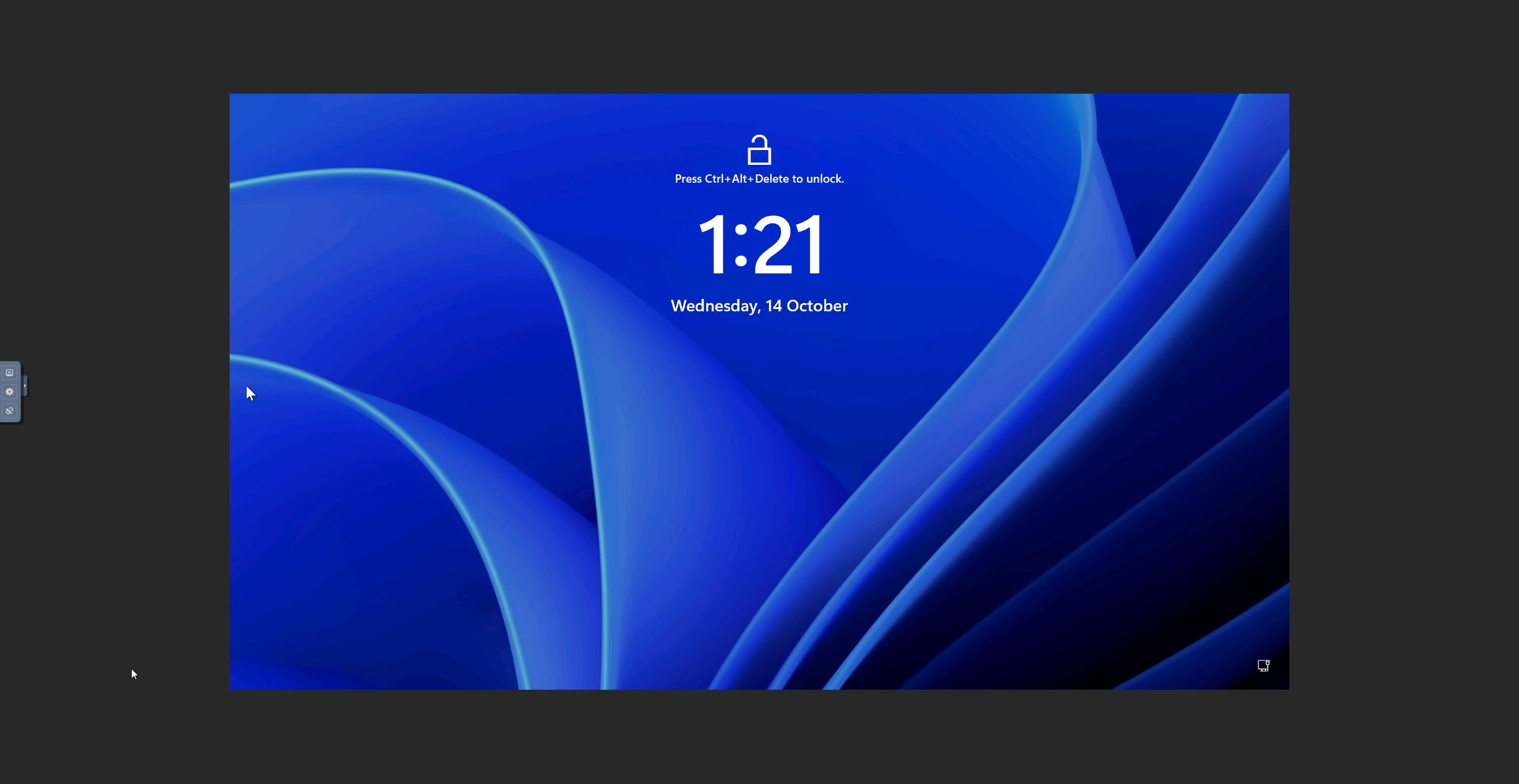
If you need to use key combinations (e.g. 'CTRL' + 'Y'), open the control bar on the left-hand side on the NoVNC websocket session and click the key combinations button to open this hotkey menu:
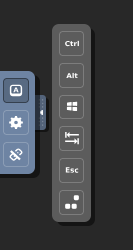
To input 'CTRL' + 'Y', select the 'Ctrl' button, then press 'Y' on your keyboard. Make sure you click on your actual screen for the keystroke to be registered.
Should I use the Rescue Console for everyday work?
No. The Rescue Console is a recovery mechanism for when you cannot reach the server the normal way. For everyday work, connect over SSH to a Linux server, or Remote Desktop to a Windows server. See Connecting to Linux with SSH.
The Rescue Console is not affected by your server's SSH settings. On a Linux server deployed with an SSH key, the root password is refused over SSH but still works on the Rescue Console. See Why can't I connect to my server using SSH?
If you require further assistance, submit a ticket here: https://support.binarylane.com.au/support/tickets/new