
Move your existing server to another BinaryLane region without rebuilding or cloning it. Your server keeps its existing IPv4 addresses.
Table of contents
- Applies to
- Where can I migrate?
- Will my server restart?
- How long does migration take?
- Before you begin
- Change location
- After migration
- If migration is unavailable
- Will my data be kept?
- Can I move back later?
- Can I automate migration?
Applies to
This guide covers changing a server's location in mPanel. If you use the classic panel, switch to the new mPanel first.
Where can I migrate?
Servers with public IP addresses must stay within their region group. The region groups are Australia and Singapore. You can move between Australian regions, but not between Australia and Singapore. Existing IPv4 addresses stay with the server.
If you need to move your server between region groups (i.e. from Singapore to Australia or from Australia to Singapore), you need to clone the server instead: Clone a VPS
The destination must have capacity for your server. A listed region does not guarantee that a migration can proceed.
Will my server restart?
The migration is live: your server remains running and does not need a reboot. At the end of the move the server's IP is switched from one data centre to the other, which drops at most a handful of packets; this is not a disruption and needs no maintenance window.
How long does migration take?
Servers with small amounts of storage may migrate in a few minutes; servers with large amounts of storage can take significantly longer. Migration time depends mostly on the size of the server's storage.
The total migration time is separate from the momentary switch-over at completion. Your server remains running while the move progresses. Follow the migration status in mPanel rather than expecting the move to finish within a fixed time.
Before you begin
Check the destination and prepare any affected network services before starting the move.
- Have a recent backup and a way to check your applications after the move.
- If IPv6 is enabled, disable it in mPanel before migrating. Arrange an alternative connection first if you currently manage the server over IPv6. Check which DNS records, firewall rules and applications depend on its IPv6 address.
- Remove any partner-server pairing. You can pair the servers again if both are in the same region after migration. Servers in different regions cannot share a host node, so they do not need a partner pairing to keep them on separate hosts.
- Remove the server from any load balancer. Plan for the effect on traffic before doing so. After migration, it can be reconnected to an Anycast load balancer.
Change location
Open the server in mPanel and use Settings > Region to start the migration.
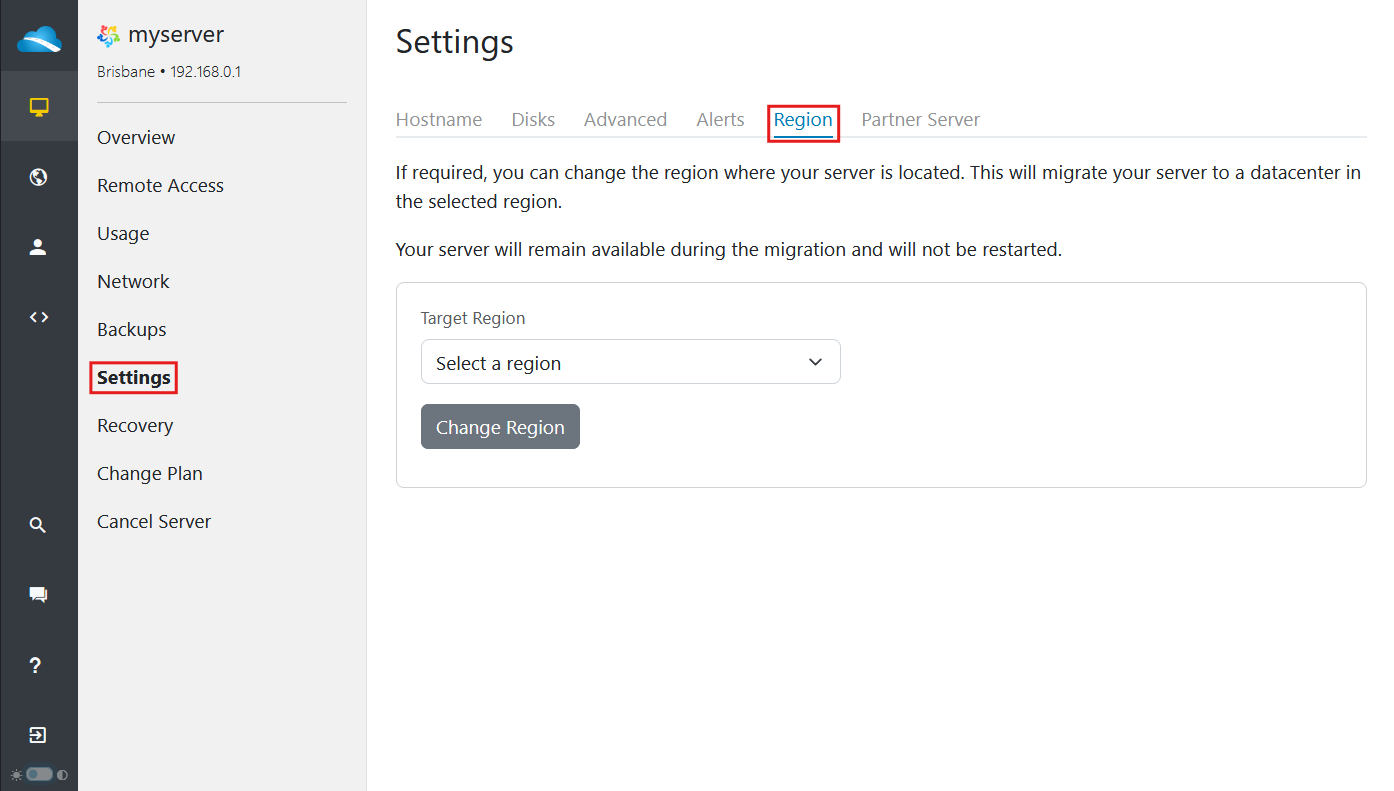
- Select the destination from Target Region.
- Check the selected destination:
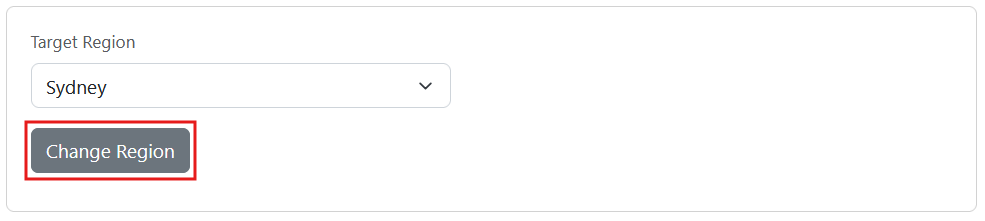
- Review the destination, then select Change Region and follow any confirmation prompt.
- Follow the migration notification or progress indicator and wait for completion:
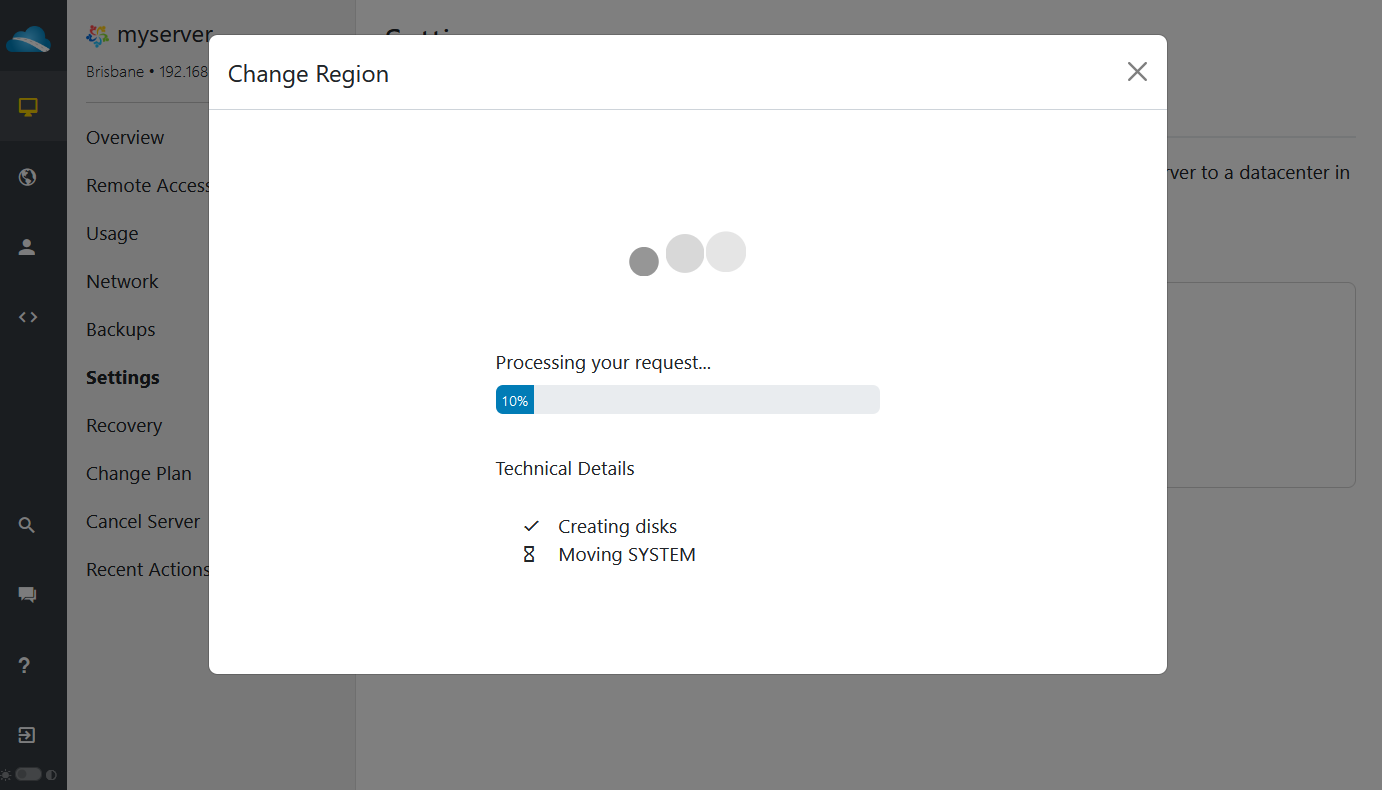
You can minimise the notification using its X button. Migration duration varies; use the reported status, rather than elapsed time, to check completion.
Start the migration once. If the progress notification briefly disappears, the move is still queued and will continue on its own. Do not select Change Region again: a second request while one is in progress is refused with "This action is unavailable as a system action is in progress."

After migration
Check the server's location and test your applications and network connections.
Use the region shown in mPanel to check the destination, not an IP-geolocation website. A geolocation database's city label may not reflect the server's actual location.
- Your existing IPv4 addresses remain unchanged, so DNS records pointing to those addresses do not need changing for this move.
- If needed, re-enable IPv6. The server's IPv6 address changes after moving to another region; check the new details in mPanel. Update records and rules that reference the previous address, and test IPv6 connectivity. See Configuring IPv6 on Linux VPSs for Linux configuration guidance.
- Restore eligible partner-server and Anycast load-balancer settings, then check the affected services.
If migration is unavailable
Check the prerequisites above and read the error shown in mPanel. If you need assistance, contact support with the server name, destination region and exact error. Do not assume a failed request means the server has moved.
If you receive This server cannot move regions at this time with a message that your primary public IP address cannot move between regions, the address may not yet be assigned to a region group. Include that exact message in your support ticket. We will check whether the address can be assigned to the appropriate group and help with other options if it cannot. A server with a public IP address cannot move between the Australia and Singapore region groups; this check does not change that.
Will my data be kept?
Yes. Migration transfers your existing server and its data to the destination region; it does not rebuild the server. Have a recent backup before starting, as you would before other significant changes.
Can I move back later?
Yes, provided the migration prerequisites are met again and the original region has sufficient capacity at that time. Returning is another migration, so prepare any affected network features again.
Can I automate migration?
Yes. Migration is also available through the BinaryLane CLI and API. The same migration restrictions apply.
For step-by-step instructions, follow Migrate your server to another region using the API or CLI.