
If Remote Desktop reports that your account is locked after too many sign-in attempts, use the mPanel console to recover access, then restrict who can reach Remote Desktop to reduce repeat lockouts.
Note: If your home or office IP address has changed and your firewall still allows the old address, see Ongoing access when your IP address changes. Updating a firewall rule and unlocking a Windows account are separate tasks.
TABLE OF CONTENTS
- Applies to
- Confirm that the account is locked
- Recover access through the mPanel console
- Restrict Remote Desktop access in mPanel
- Ongoing access when your IP address changes
- Optional: use a different Remote Desktop port
- Can I rename the Administrator account?
- If the account keeps locking
Applies to
- BinaryLane servers running Windows Server 2025.
- The built-in local Administrator account, including when it has been renamed.
- mPanel Cloud Firewall rules for public IPv4 access to Remote Desktop.
You need access to the server in mPanel and its Windows administrator credentials. For a domain account, ask your domain administrator to check the account and domain policy; the local-account steps below do not unlock a domain account.
Confirm that the account is locked
An account-lockout message is different from a connection timeout or an incorrect-password message. Check the exact error before changing settings.
Remote Desktop may report that the account has been locked because there were too many login attempts. Repeated failed authentication can come from unwanted internet traffic, or from a legitimate client using an old or incorrect password. Stop retrying with credentials you are unsure of.
By default, Windows Server 2025 locks the built-in Administrator account after 3 failed network sign-in attempts, a far lower threshold than earlier versions; a domain or local policy on your server may set a different number and a different lockout duration. An account may unlock after its configured duration; a duration of zero requires an administrator to unlock it. See Microsoft's account lockout duration reference.
If Remote Desktop times out instead, check the server is running, the destination IP address and port are correct, and your current source IP is allowed by both mPanel and Windows Firewall. Unlocking an account does not fix a blocked connection.
Recover access through the mPanel console
Use the mPanel console to sign in locally and check the account. Microsoft's built-in Administrator lockout guidance distinguishes network logons from console logons: the built-in Administrator's network lockout does not itself block console sign-in. You still need the correct password, and other account restrictions can prevent sign-in.
- Sign in to mPanel and select your server. Open its console from Remote Access.
- Sign in to Windows using the built-in local Administrator account and its password. Use its current name if you renamed it.
- Open Run, enter
lusrmgr.msc, and open Users. - Open the account's Properties. If Account is locked out is selected, clear it and select Apply, then OK.
- Keep the console available while you check the firewall rules below. Then try a new Remote Desktop connection with the correct credentials.
Important: We do not recommend changing the Administrator account username. The mPanel Change Password function relies on the account being named Administrator, so renaming it disables password resets for your server.
If the checkbox is already clear, the lockout may have expired or the connection may be using a different account. Check the username and error before changing anything else. If you cannot sign in through the console, contact support with the error rather than repeatedly guessing the password.
Important: Do not disable account-lockout protection or Windows Firewall to work around repeated lockouts. Unlocking the account does not stop further failed sign-in attempts; restrict access and investigate the source.
Restrict Remote Desktop access in mPanel
Allow your trusted public IPv4 addresses to reach the server's Remote Desktop port, then block other IPv4 sources to that same destination and port. An Allow rule alone does not restrict access. The first matching rule applies.
Important: Review and save a copy of existing rules before changing them. Preserve access required by other administrators and check for earlier rules that already match the traffic. Keep the console available in case you block your own connection. A VPN or proxy may make the browser's Current IP differ from the address used by your Remote Desktop connection.
Check your current public IPv4 address using a site such as WhatIsMyIPAddress, from the computer you use for Remote Desktop.
The screenshots below show the current mPanel. Use port 3389, or your actual Remote Desktop port if you have changed it. For more detail, see Cloud Firewall.
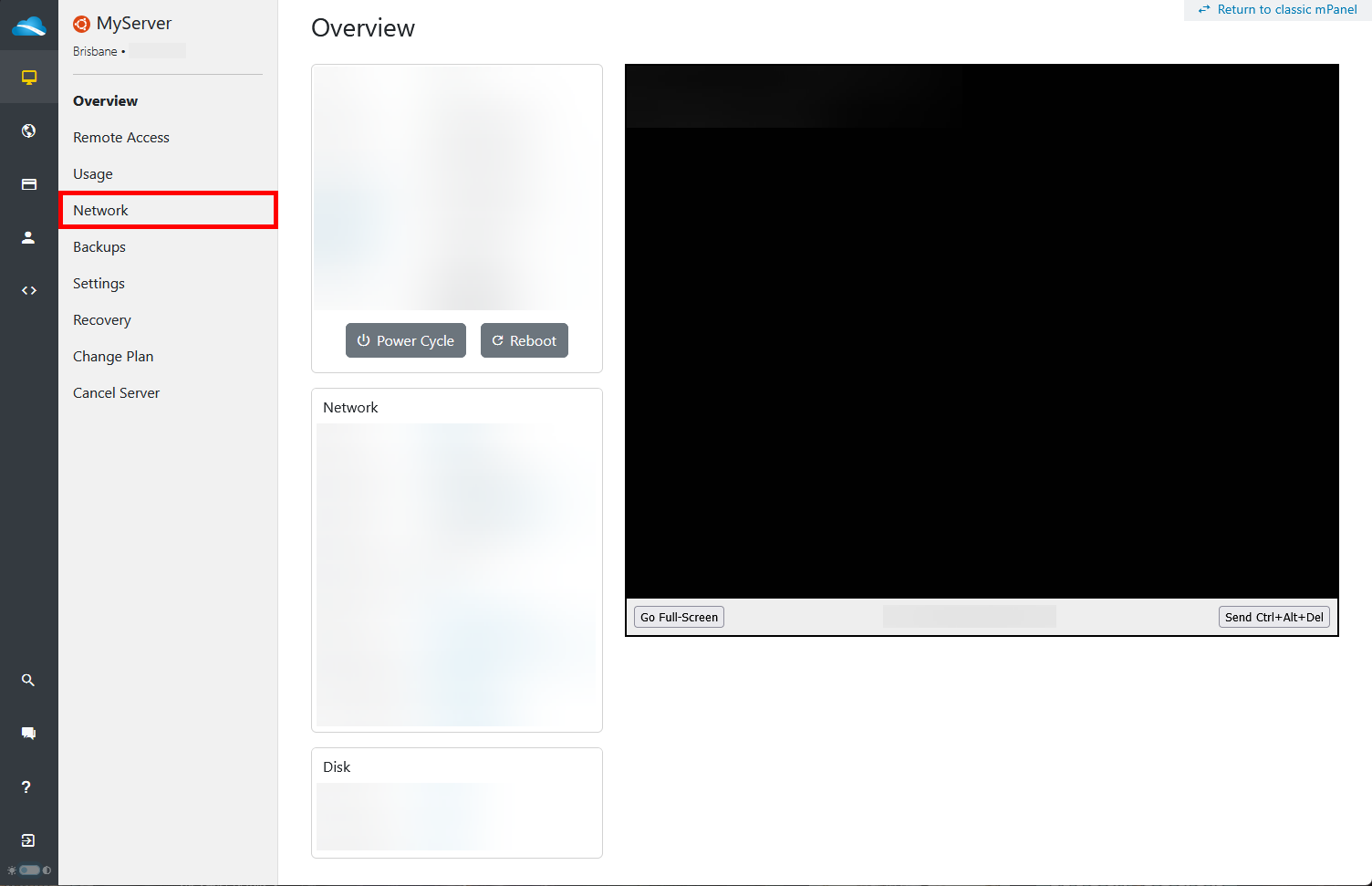
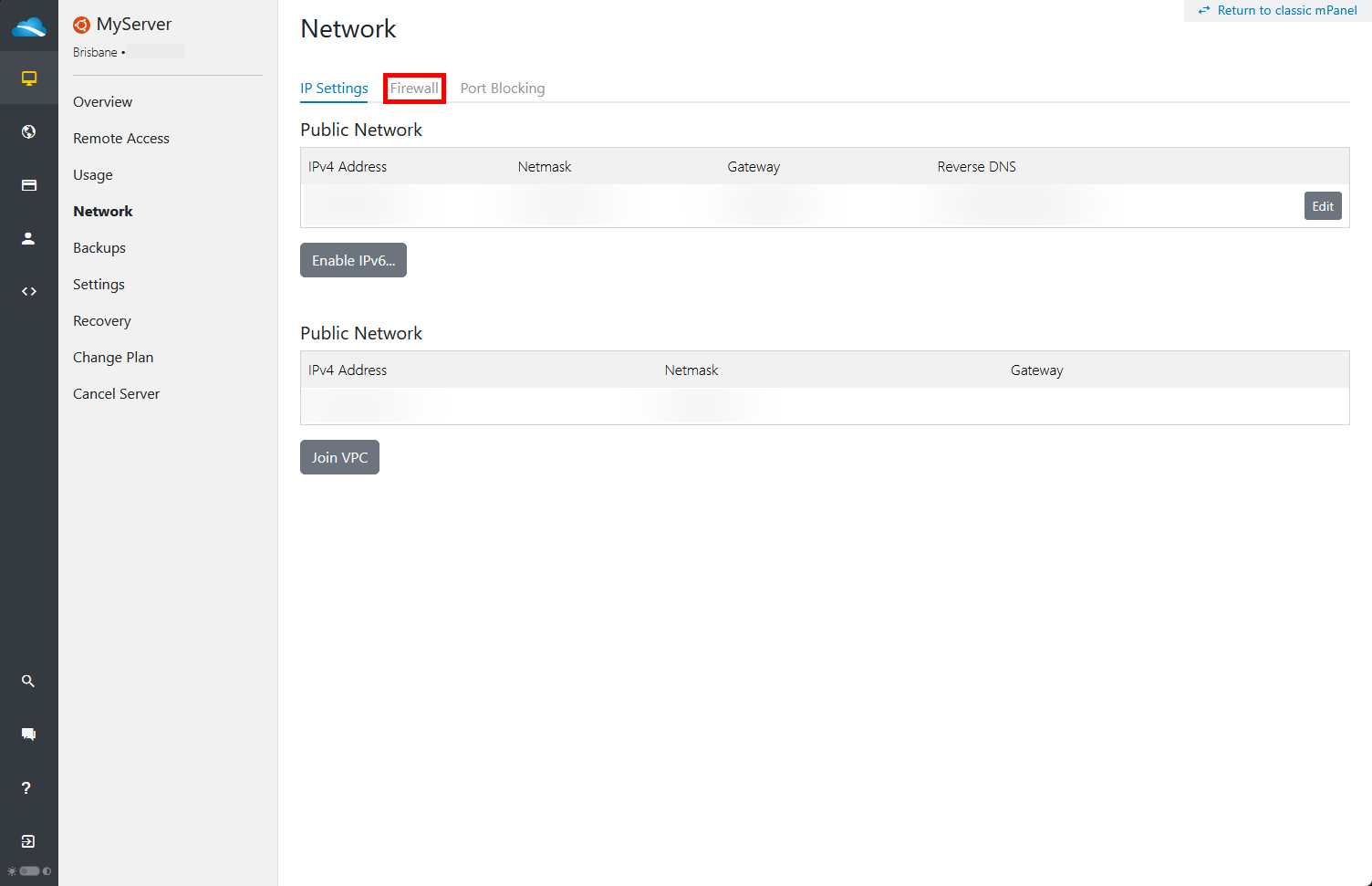
- In mPanel, select your server, then Network > Firewall.
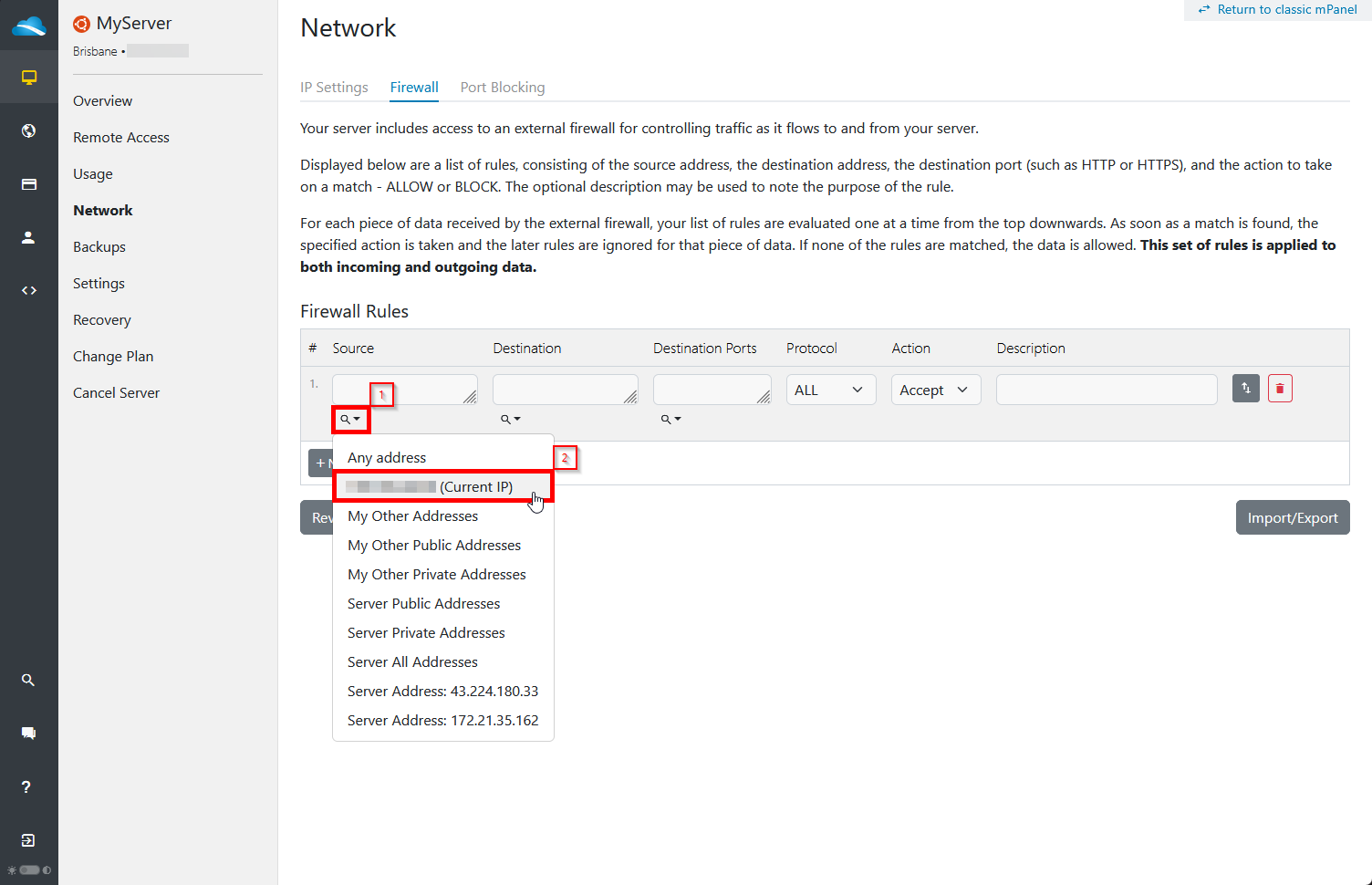
- Select + New Rule. In Source, use the magnifying-glass menu to select Current IP, or enter the verified public IPv4 address from which you connect.
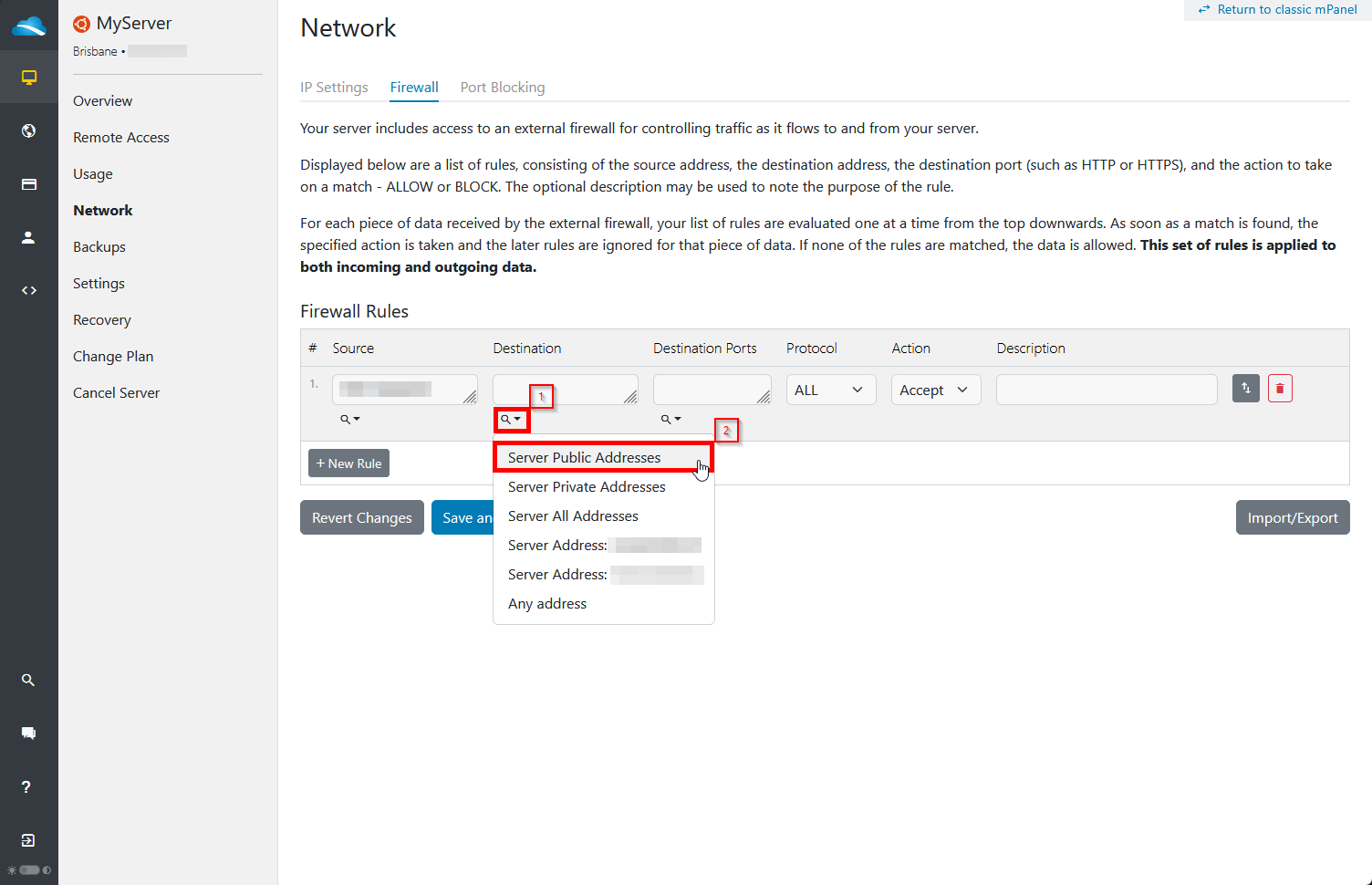
- For Destination, select Server Public Addresses.
- For Destination Ports, select 3389 (Remote Desktop), or enter your configured port.
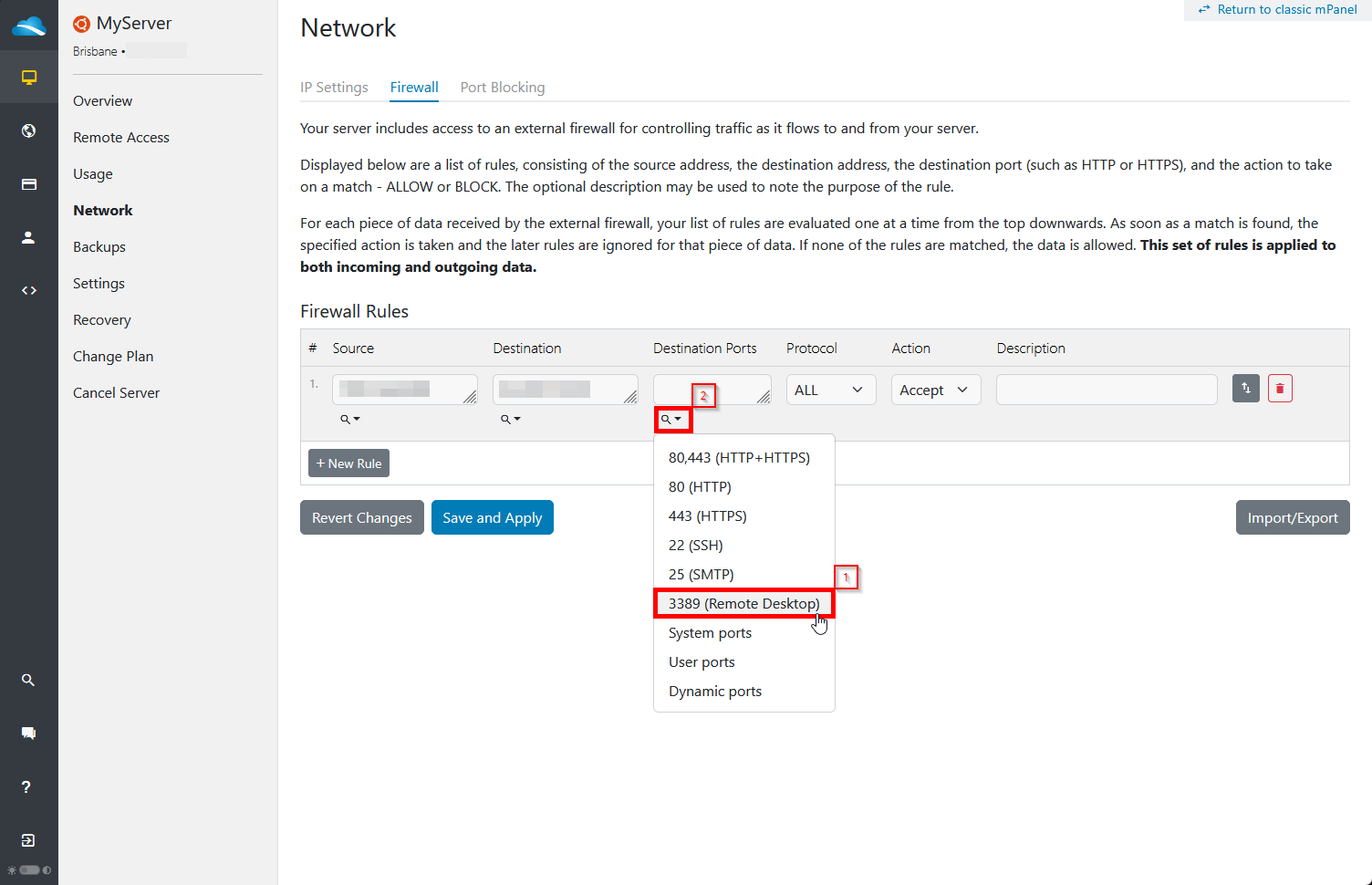
- Leave Protocol as All and select Accept for Action. This allows traffic to the selected port. Add a description you will recognise. Add any other required trusted-source rules before the blocking rule below.
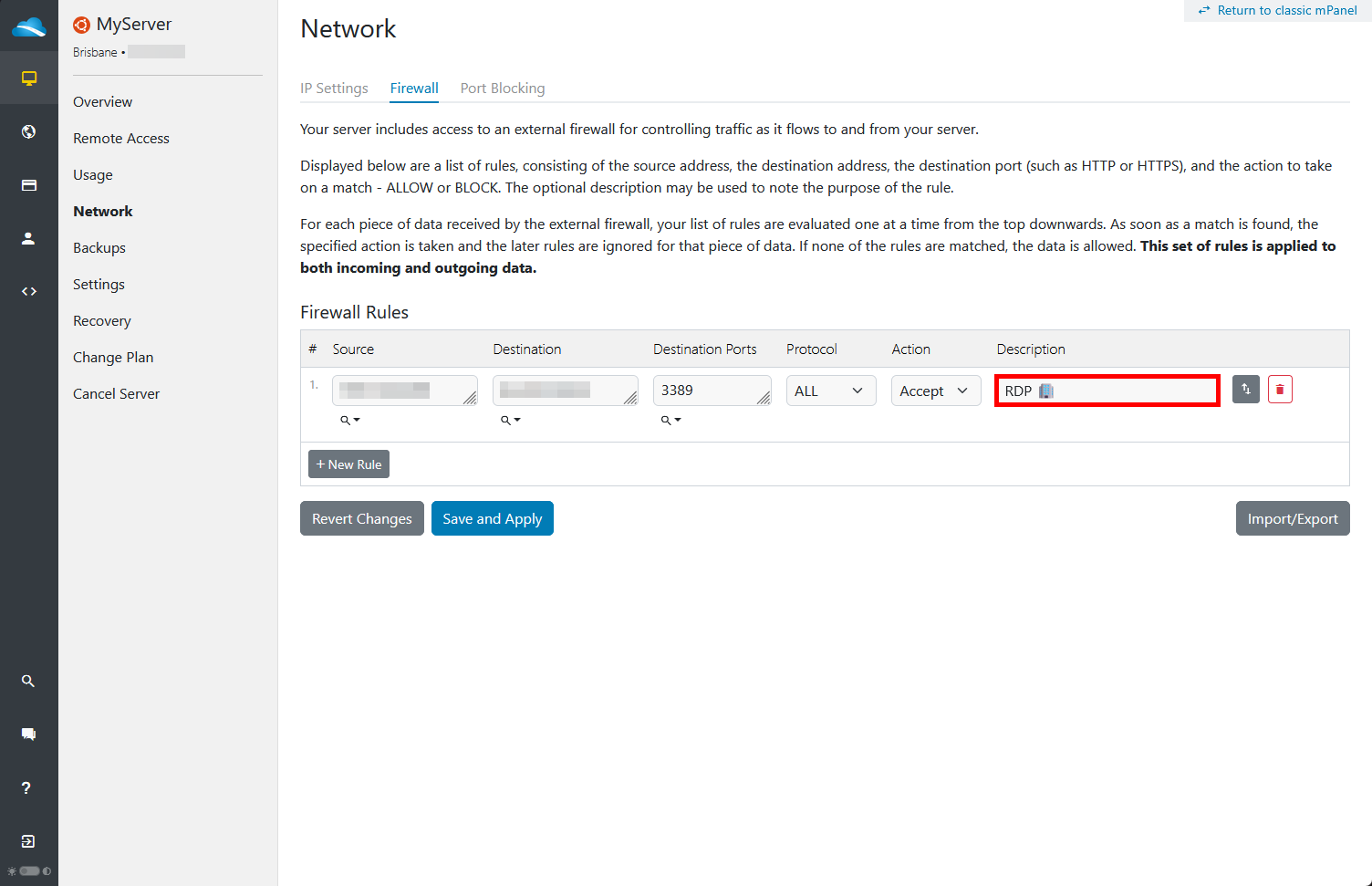
- Add another rule immediately after the trusted-source rules. For Source, select Any Addresses (
0.0.0.0/0).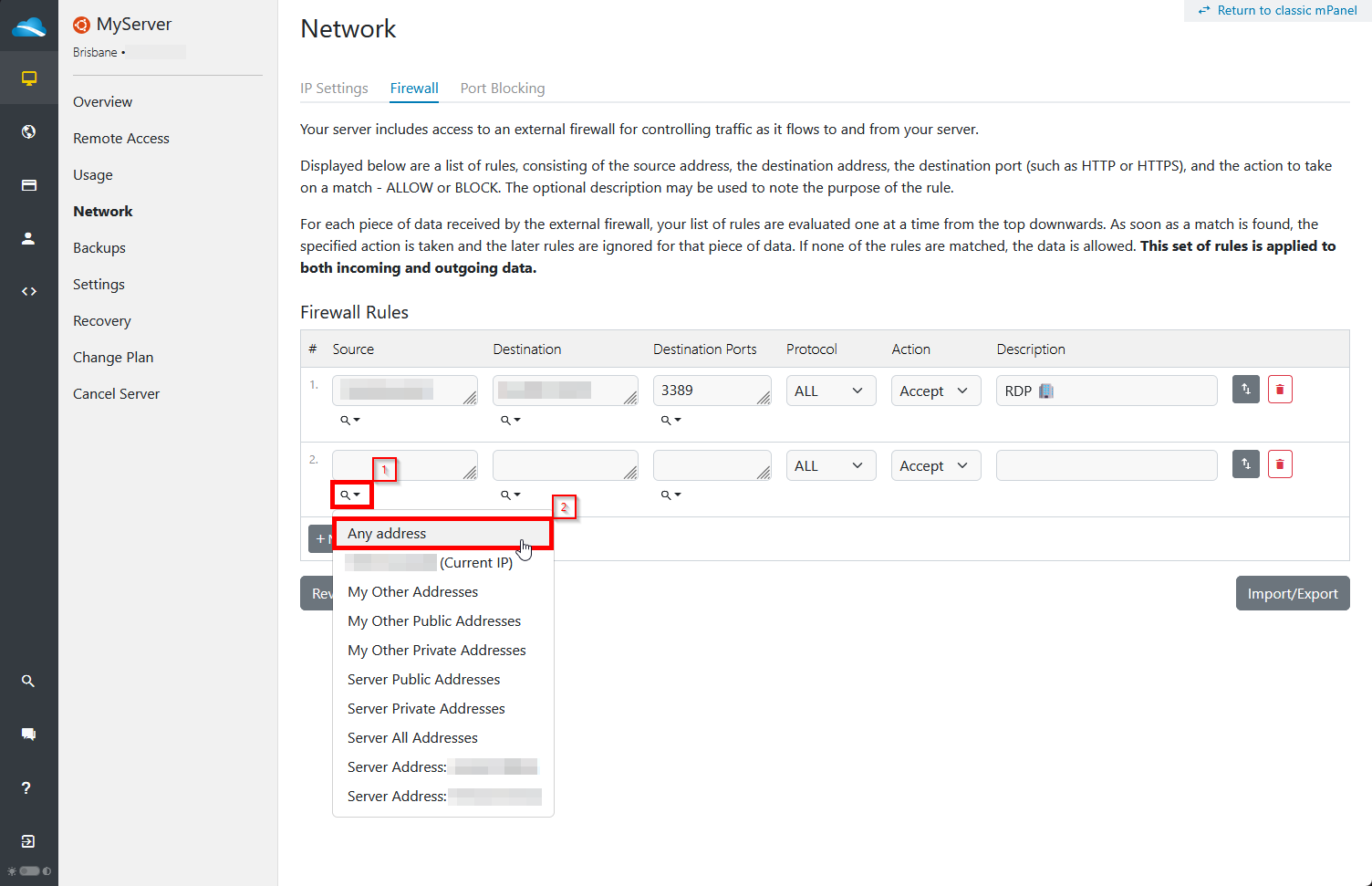
- Select the same Server Public Addresses destination and Remote Desktop port.
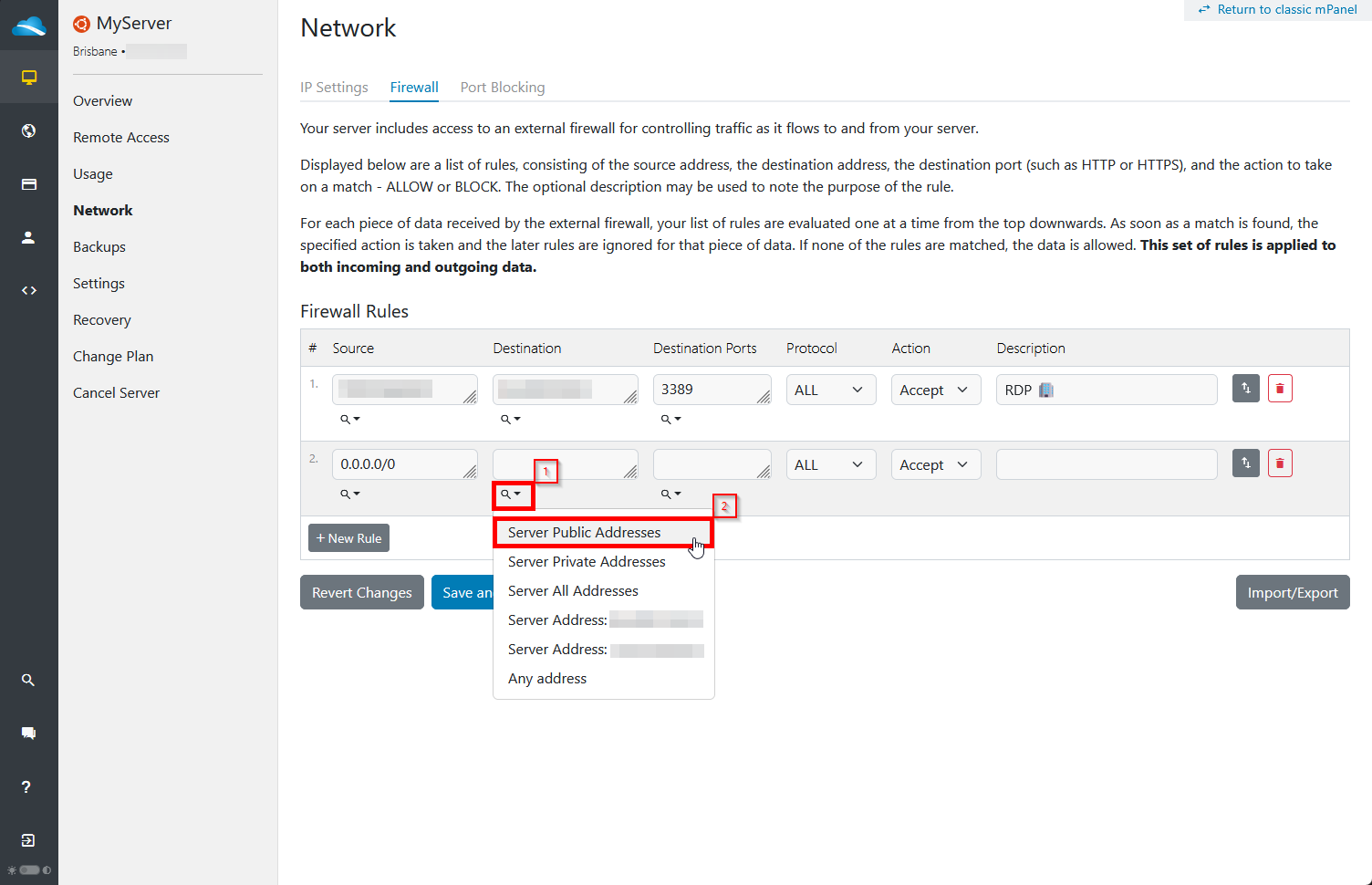
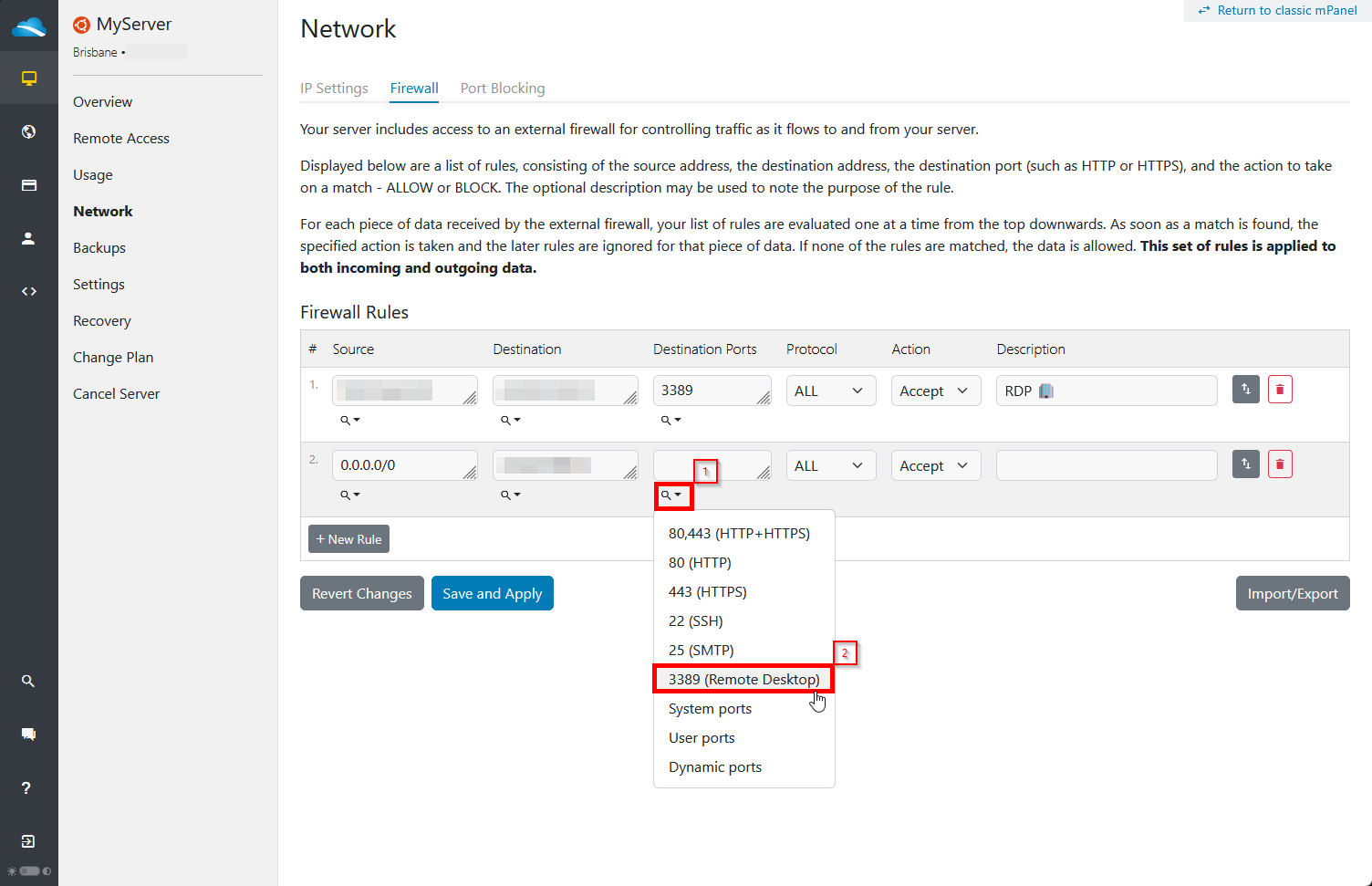
- Leave Protocol as All, and select Drop for Action to block other sources to that port. Check that the trusted-source rules come first.
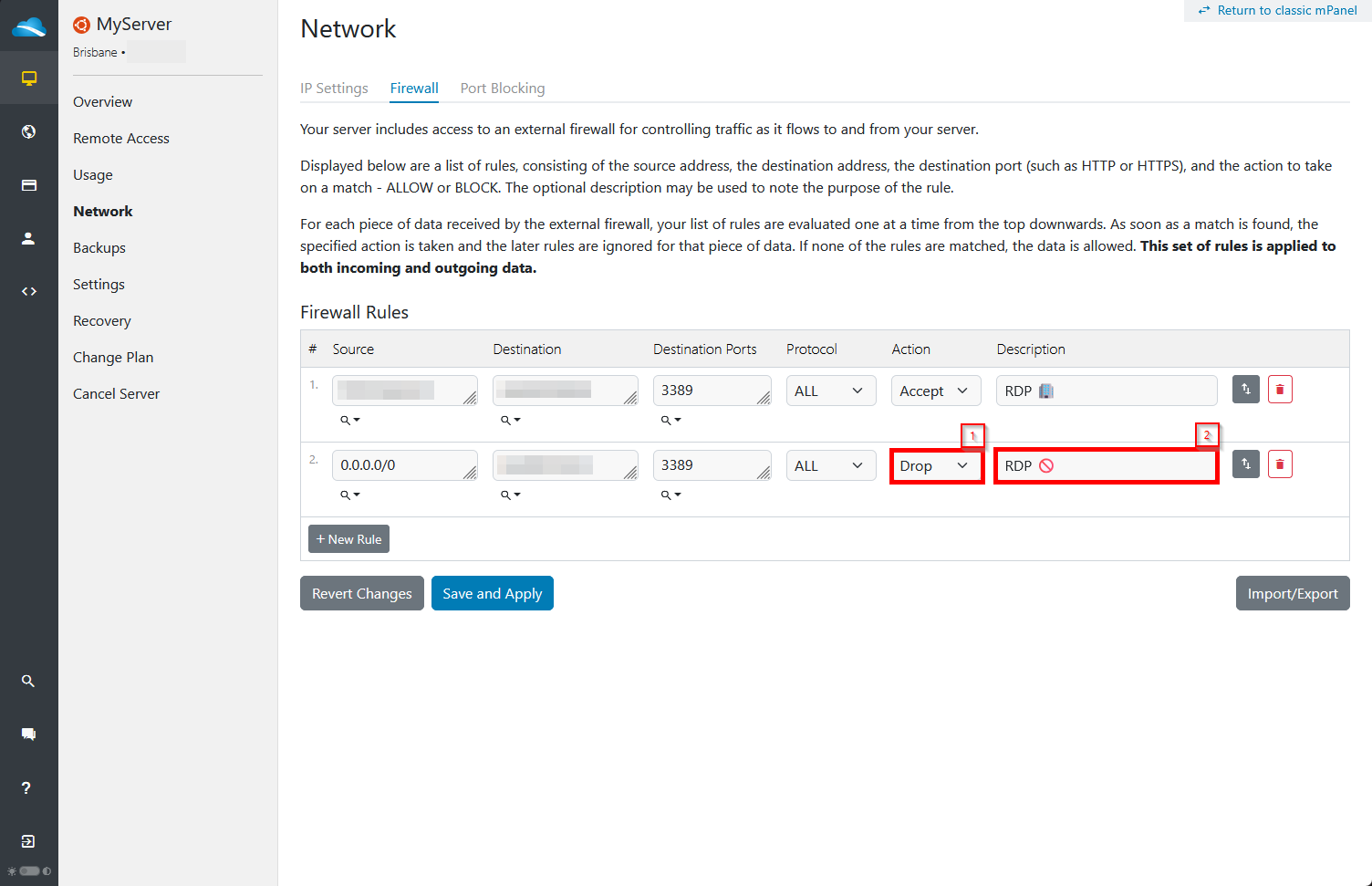
- Review the complete ruleset, then select Save and Apply.
Open a new Remote Desktop connection after saving. An existing connection remaining open does not prove that new connections are allowed. If the new connection fails, check the source address, destination, port and rule order in mPanel, and check the matching Windows Firewall rule through the console.
These mPanel rules cover IPv4 only. If you also use IPv6, protect that access separately in the guest firewall. Restricting RDP does not prevent failures from other sign-in paths or from a trusted computer with incorrect saved credentials.
Ongoing access when your IP address changes
Update the trusted-source rule when your home or office public IPv4 address changes. Replace the old address rather than adding another rule every time.
See Keep your home or office IP address allowed in the BinaryLane firewall for manual updates in mPanel and CLI scripts for a dedicated single-IP rule pair. Use the manual option if your rules must retain access for multiple people or networks. Updating the rule does not unlock a Windows account.
Optional: use a different Remote Desktop port
A different listening port is not a substitute for restricting access or using strong credentials. If you choose to change it, follow Microsoft's Remote Desktop listening-port instructions.
Important: Keep console access available. Allow the new port in Windows Firewall and update the mPanel rules before reconnecting. Microsoft's procedure requires a computer restart, so plan for downtime. Connect using the new port and verify a fresh connection before removing obsolete rules for the old port.
Can I rename the Administrator account?
You can, but we do not recommend it. The mPanel Change Password function relies on the account being named Administrator, so once it is renamed you can no longer reset that server's password from mPanel.
If you still want to rename it:
- Create a second local administrator account first and check that you can sign in with it, so you are not left without a way in if the renamed account's password is lost.
- Rename the built-in Administrator account inside Windows. The rename is managed in the operating system, not in mPanel.
- Use the new name when you sign in through the console or Remote Desktop.
Renaming the account does not stop Remote Desktop sign-in attempts. To reduce lockouts caused by unwanted traffic, restrict who can reach Remote Desktop as described in Restrict Remote Desktop access in mPanel.
If the account keeps locking
Check for Remote Desktop clients or other applications using an old saved password. In Windows Event Viewer, inspect Windows Logs > Security around the time of the lockout. Where the relevant auditing is enabled, event 4740 records an account lockout and 4625 records a failed logon. The available details can help identify the account and origin; not every event includes a usable source address.
If you still need help, submit a support ticket at our helpdesk: Submit a ticket | BinaryLane. Include the server name, exact error, approximate time and timezone, and whether console sign-in works. Do not include passwords or API tokens.