
This guide shows you how to create an SSH key on an Ubuntu VPS, add the public key to your personal GitHub account, test the connection, and use an SSH remote for a repository.
After setup, Git on the VPS authenticates to GitHub with the private key instead of a GitHub password or personal access token.
Prerequisites:
- An Ubuntu VPS that you can access through SSH or the mPanel web console.
- A GitHub account.
- Access to the GitHub repository that you want to clone, pull from or push to.
Important: Adding the key to your personal GitHub account gives anyone who can use the private key the same GitHub repository access that your account has through SSH. Keep the private key secure. For automated access to only one repository, consider a read-only GitHub deploy key instead.
TABLE OF CONTENTS
- Create an SSH key on the VPS
- Copy the public key
- Add the key to GitHub
- Test the connection
- Use the key with a repository
- Troubleshooting
1. Create an SSH key on the VPS
Open the Create an SSH key on your computer section of our SSH key guide.
Important: For this GitHub workflow, follow the Ubuntu or Linux instructions while logged in to the VPS. The private key must be created and kept on the VPS account that will run Git commands.
After creating the key, return to this guide and continue with step 2.
2. Copy the public key
Display the public key:
cat ~/.ssh/id_ed25519.pub
Copy the complete single line, beginning with ssh-ed25519.
Important: Only copy or share the file ending in.pub. The file without.pubis the private key and must remain private.
3. Add the key to GitHub
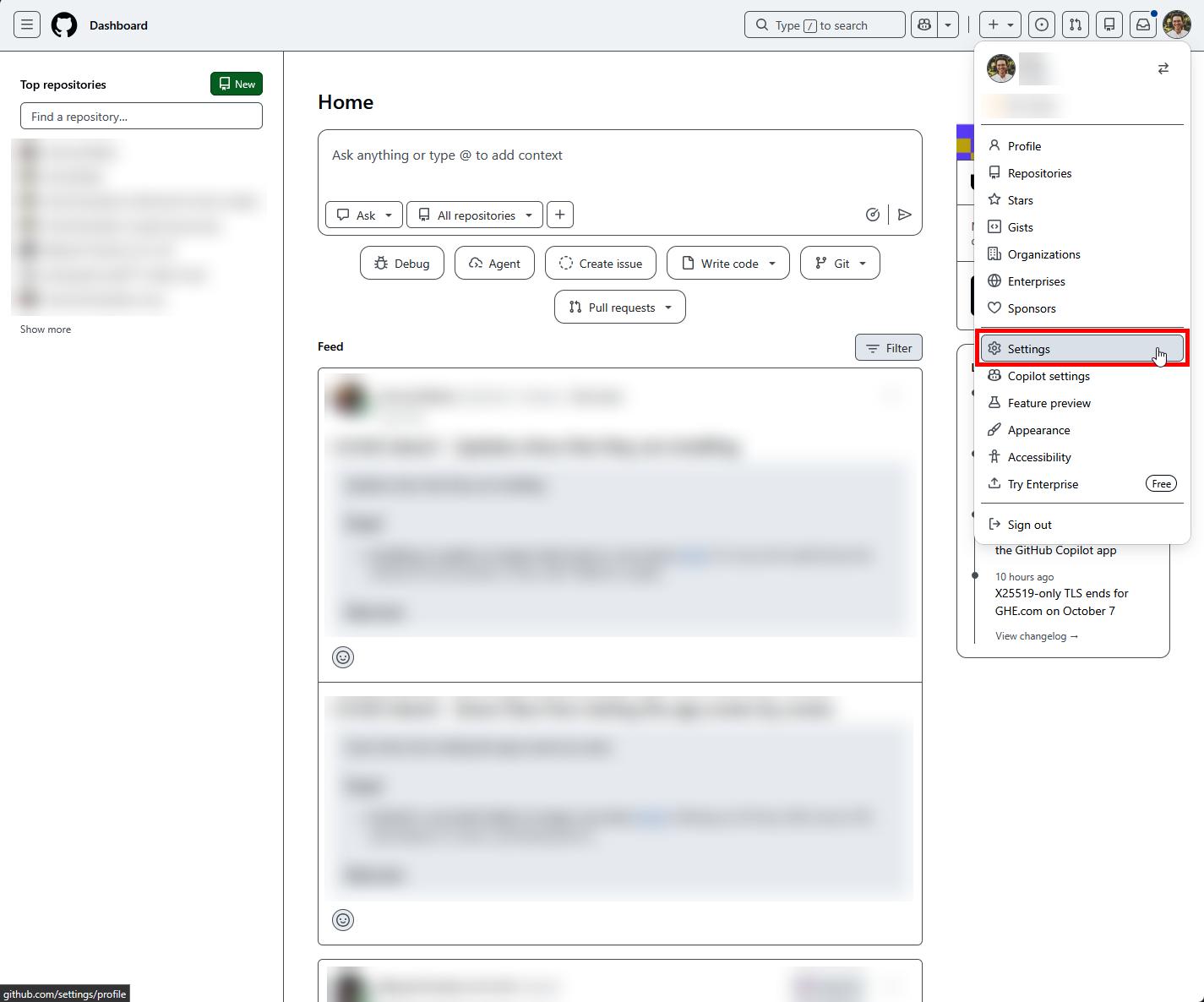
- Log in to GitHub. Select your profile picture in the upper-right corner, then select Settings.
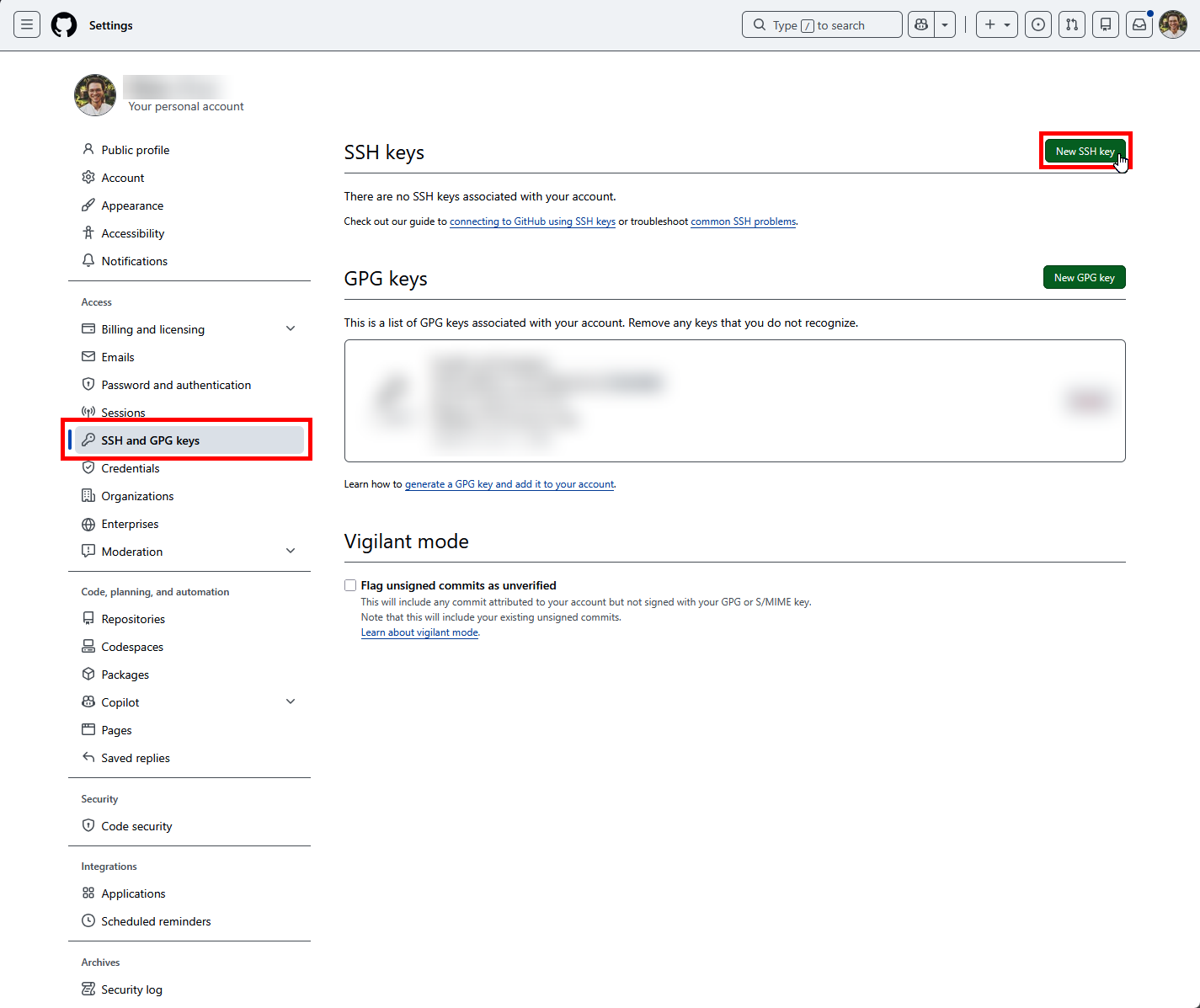
- In the Access section of the sidebar, select SSH and GPG keys, then select New SSH key.
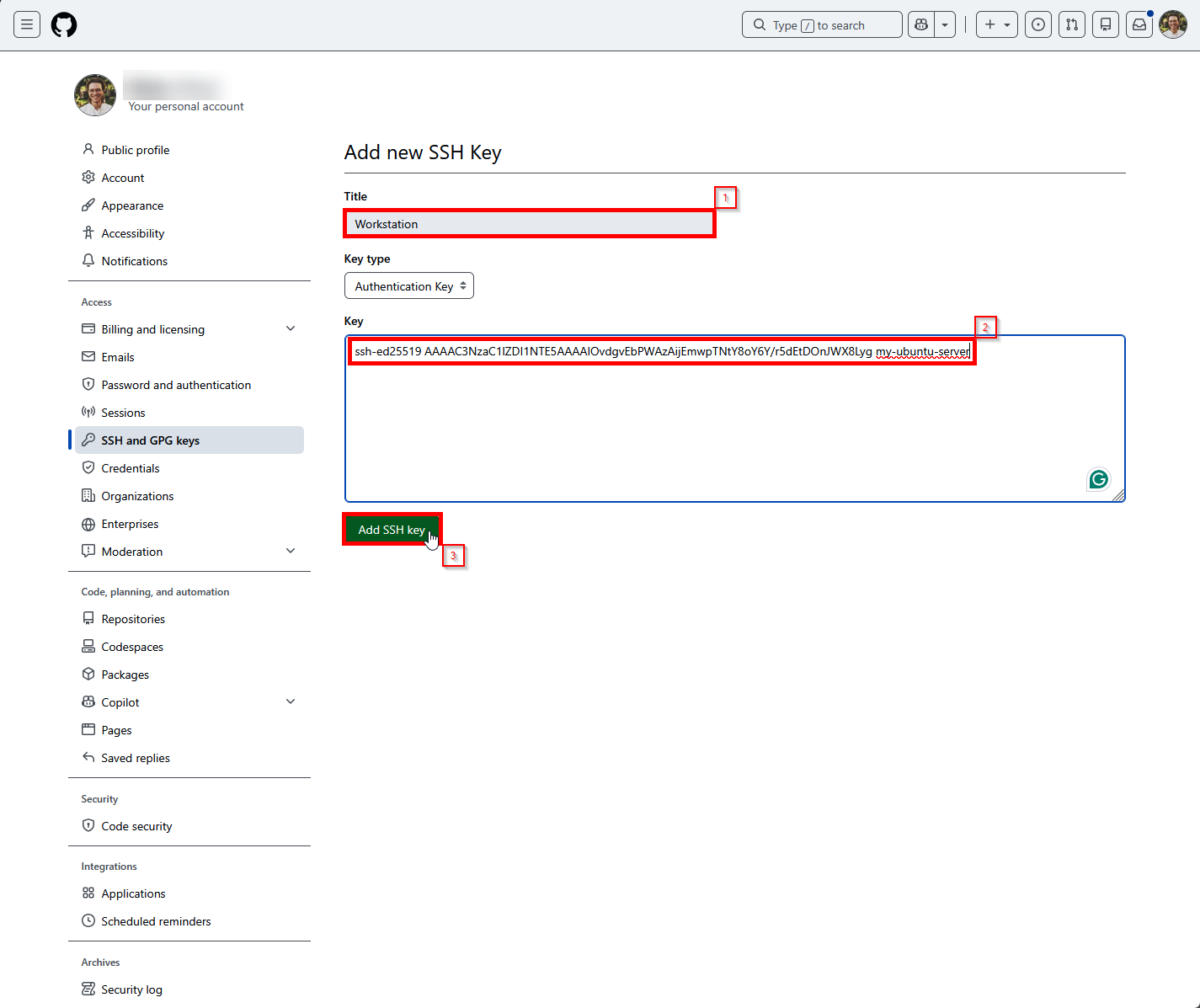
- Enter a descriptive Title for the VPS. Leave Key type set to Authentication Key, paste the public key into Key, then select Add SSH key.
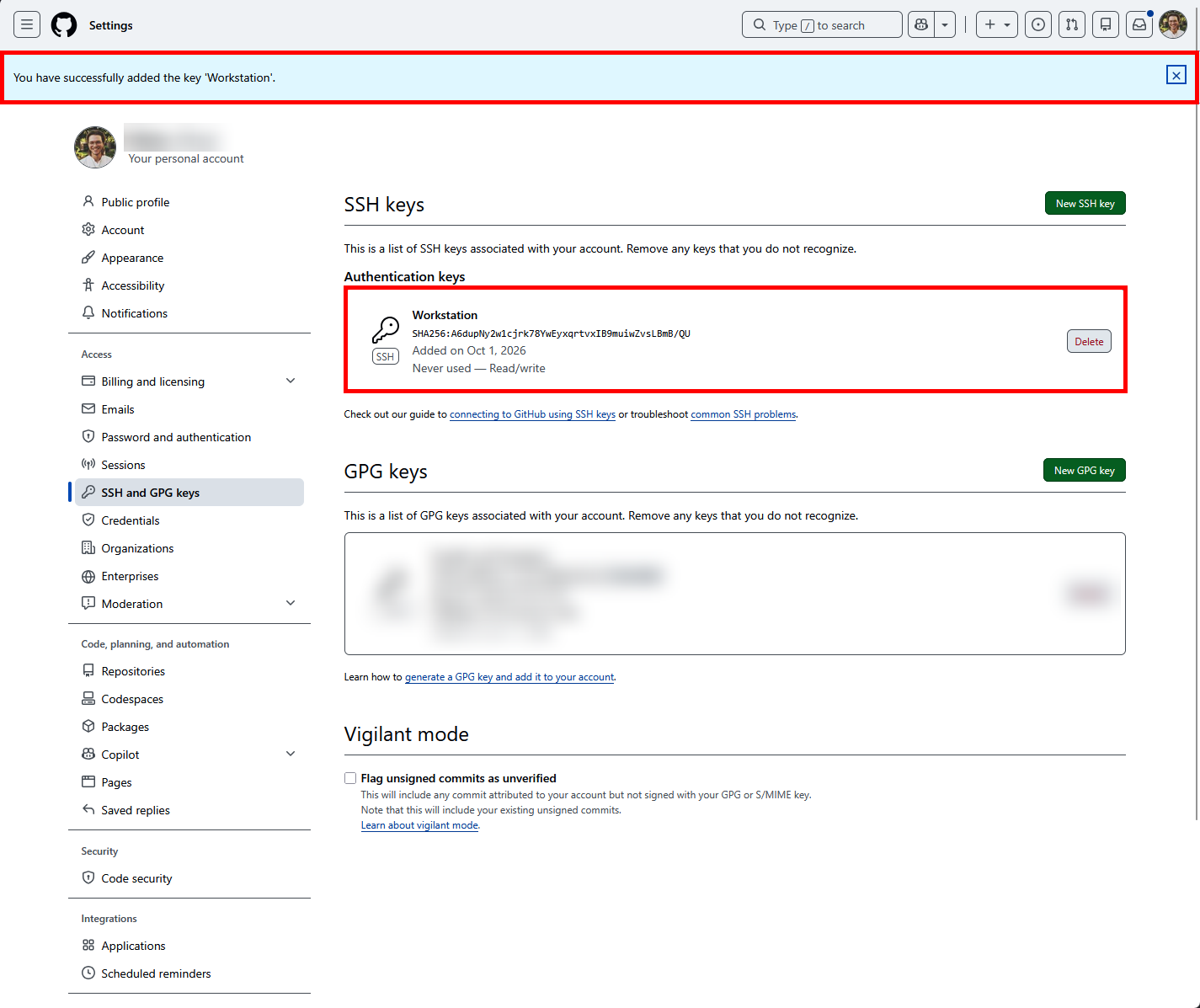
- If GitHub asks you to confirm access to your account, complete the prompt. The key should then appear under Authentication keys.
4. Test the connection
From the VPS, test SSH authentication to GitHub:
ssh -T git@github.com
The first time you connect, SSH displays GitHub's host key fingerprint. Compare it with GitHub's published SSH key fingerprints. If it matches, type yes.
A successful test displays a message similar to:
Hi USERNAME! You've successfully authenticated, but GitHub does not provide shell access.
This message confirms that authentication succeeded. The test command may still return exit status 1 because GitHub does not provide interactive shell access.
5. Use the key with a repository
On the repository page in GitHub, select Code, select SSH, and copy the SSH address. Clone the repository, replacing the placeholders with its owner and name:
git clone git@github.com:OWNER/REPOSITORY.git
cd REPOSITORY
If the repository was already cloned using an HTTPS address, change its existing remote to SSH:
git remote set-url origin git@github.com:OWNER/REPOSITORY.git
git remote -v
Before creating commits on the VPS, configure the name and email recorded in new commits:
git config user.name "Your Name"
git config user.email "you@example.com"
These commands set the identity for the current repository. They do not control SSH authentication. Use your normal Git workflow to commit and push changes:
git add PATH_TO_CHANGED_FILE
git commit -m "Describe your change"
git push
A push succeeds only when the GitHub account associated with the SSH key has write permission to the repository and the branch accepts the change.
Troubleshooting
If you see Permission denied (publickey), GitHub did not accept a key offered by the VPS. Check that:
- the public key displayed in step 2 is the one added to GitHub;
- you are running Git as the same VPS account that owns the private key;
- the private key is stored at
~/.ssh/id_ed25519, or your SSH configuration points to its actual location; and - the GitHub account has access to the repository.
For detailed diagnostics, run:
ssh -vT git@github.com
For more information, see GitHub's Error: Permission denied (publickey) guide.
If you require assistance, feel free to submit a support ticket at our helpdesk here: Submit a ticket | BinaryLane