
All BinaryLane servers include access to a web-based IPv4 firewall configuration tool free of charge. This firewall is external to the VPS and can be used to configure exactly what IPv4 traffic you allow into (and out of) your server.
The cloud firewall supports IPv4 only. It does not provide IPv6 support
Return traffic is permitted automatically: When your firewall configuration includes a Block rule, mPanel permits established and related return traffic before processing your configured rules. This applies to tracked TCP, UDP and ICMP traffic. A final rule blocking traffic destined for your server therefore does not block replies to connections initiated by the server.
Before you enable IPv6 on a server, set up the firewall inside the server (ufw, nftables or ip6tables on Linux, Windows Firewall on Windows). Your mPanel cloud firewall rules do not apply to IPv6 traffic, so the firewall inside the server is the only protection it will have. For Linux, see Configuring IPv6 on Linux VPSs: Configuring IPv6 on Linux VPSs
We suggest using the mPanel cloud firewall for "broad strokes" like allowing SSH, HTTP, and nothing else, and then using your VPS' firewall for blocking individual IPs and more complex things that cannot be expressed purely as a single list.
As a general rule of thumb we recommend limiting the mPanel cloud firewall to a maximum of ten rules and using your server's firewall to blacklist individual IPs.
Each server's cloud firewall can hold up to 100 rules. Together the rules can cover up to 1000 combinations of source address, destination address, protocol and destination port: each address (a single IP or a CIDR range) and each port or port range counts once, a rule for "all" protocols counts its ports twice (TCP and UDP), and an ICMP rule counts each ICMP type it covers. For example, a rule with 10 source addresses, 1 destination and 5 ports for TCP covers 50 combinations. Saving past either limit shows "Firewall rules are limited to …" and nothing is changed. To block long lists of individual IPs, use the firewall inside your server (for example nftables, ufw or Windows Firewall).
Through our management panel customers can configure a list of rules that determine what happens to VPS traffic. Each rule consists of:
- One or more source addresses
- One or more destination addresses
- Optionally, one or more destination ports.
- The action to take for matching traffic: block or allow
In the new mPanel, you can rearrange firewall rules by dragging and dropping them into the required order.
Port ranges can be used by separating beginning and end ports with a colon, for example; '80,443,2070:2099,3306'
The firewall also accepts CIDR subnet notation, for example 192.168.8.0/24, or the same range with a standard subnet mask, 192.168.8.0/255.255.255.0. Wildcard (inverse) masks such as 192.168.8.0/0.0.0.255 are not accepted: the rule is rejected with "subnet mask … is invalid". Write the range as a prefix length instead.
Once a suitable firewall configuration is in place, the "Save & Apply" button will immediately apply the chosen rules without requiring a server reboot.
If you make a mistake and block your remote access to the server, simply delete the rule and start over - as the web-based firewall operates outside the VPS, there is no possibility of permanently preventing your own access.
An import/export tool is also available, which provides the ability to manipulate the rules as a block of JSON-structured text. This allows rules to be created offline, or easily copied from one server to another.
Example
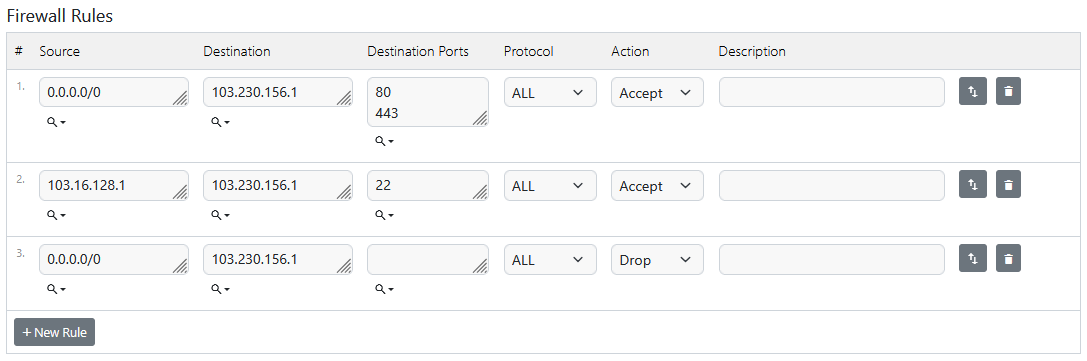
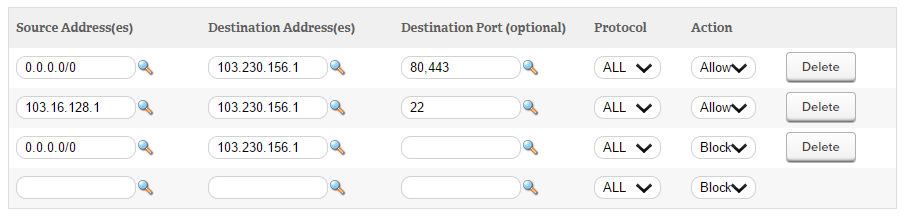
In this example we will allow HTTP and HTTPS connections from anyone on the internet, allow SSH connections from your own IP only, and block everything else. These are "incoming" rules, meaning we need to set the destination to the server's IP address.
First, add the rule to allow public HTTP+HTTPS as follows:
- Source Address(es): Click the magnifying glass icon and select "Any addresses" , or type in: 0.0.0.0/0
- Destination Address(es): Click the magnifying glass icon and select "Server Public Addresses"
- Destination Port(s): Click the magnifying glass icon and select HTTP+HTTPS, or type in: 80,443
- Protocol(optional): TCP
- Action: Allow
Second, add the rule to allow SSH only from your own computer as follows:
- Source Address(es): Click the magnifying glass icon and select "Current IP". If you have other addresses you know you need remote access from, you may enter additional addresses by separating them with commas.
- Destination Address(es): Click the magnifying glass icon and select "Server Public Addresses"
- Destination Port(s): Click the magnifying glass icon and select SSH, or type in: 22
- Protocol(optional): TCP
- Action: Allow
Finally, enter the following to block all other connections:
- Source Address(es): Click the magnifying glass icon and select "Any addresses" , or type in: 0.0.0.0/0
- Destination Address(es): Click the magnifying glass icon and select "Server Public Addresses"
- Destination Port(s): Leave blank
- Protocol(optional): Leave set to ALL
- Action: Block
You will end up with a screen something like this:
Choose mPanel view:
Click Save & Apply at the bottom of the page to apply the changes. If you need to access SSH from a different IP address, you can return to mPanel cloud firewall in the future and update your IP address.
Remember that if you have any issues accessing your server you may return to mPanel cloud firewall and delete the appropriate rule(s) to gain access.
Internal VPS Firewall
As the server administrator, you are able - and encouraged - to configure your server's own firewall in a suitable manner. Our VPS installs are pre-configured to respond to:
- ICMP ECHO ("ping") requests
- Listen for SSH connections (Linux only)
- Listen for Remote Desktop connections (Windows only)
For many customers, this initial firewall configuration provided is perfectly suitable as is.
Traffic must be allowed by both firewalls
Your server has two separate firewall layers, and traffic reaches your application only when both of them allow it:
- The Cloud Firewall sits in front of your server and is managed in mPanel under the server's Firewall section. Traffic meets it first.
- The firewall inside your server (for example nftables, iptables, UFW, firewalld or Windows Firewall, and tools such as fail2ban that add rules to it) runs in your operating system and is managed by you.
To let all traffic through the Cloud Firewall, log in to mPanel, open the server and go to Firewall. Either disable the Cloud Firewall, or delete the rules that block the traffic and select Save & Apply. With the Cloud Firewall disabled, all inbound IPv4 traffic reaches your server and the firewall inside it decides what is accepted.
Rules inside your server are yours to manage, and support does not change them on your VPS. If you also want the firewall inside your server out of the way, change it from within the operating system. If you use fail2ban with nftables, stop fail2ban before you flush the ruleset, or it adds its chains back.
Keeping an allow-list in step with a changing list of IP addresses
The Cloud Firewall cannot import or automatically sync a changing list of IP addresses, such as a CDN's published IP ranges. To keep an allow-list like that current:
- Inside your server (the simplest way): run a scheduled script that downloads the published IP list and refreshes your server's own firewall rules (nftables, iptables or UFW).
- On the Cloud Firewall: the Cloud Firewall can be managed through the BinaryLane API and CLI, so you can script updates to its rules yourself. Support cannot build or maintain that automation for you.
Use the Cloud Firewall for broad rules and the firewall inside your server for long or frequently changing lists of addresses.